ProMods doesn’t fail because it’s difficult to install. It fails because of small mistakes—wrong folder, wrong version, or missing DLC. This guide focuses on getting it working on Steam Deck without the guesswork.
What You Need Before You Start
- Euro Truck Simulator 2 installed
- All required map DLCs
- ProMods files downloaded
Check Game Version and DLC Requirements
ProMods only works with specific versions of the game. Before installing:
- Your ETS2 version must match the ProMods version exactly
- All required DLCs must be installed and enabled
If Euro Truck Simulator 2 updates, ProMods must also be updated to match the new game version. Mismatched versions can cause the mod to fail to load or crash the game.
If either is missing, ProMods will not load correctly or may not appear at all.
Download ProMods
Download ProMods from the official site and generate your required files.
You will need to create a free ProMods account before downloading files. This is required to access the download links and generate your def file.
Download Options
ProMods offers two download methods:
- Free download: Slower, split into multiple parts, includes a short wait between each file
- Paid download: Faster, all files provided in a single package
Both versions contain the same files. The only difference is download speed and convenience.
Download and Prepare ProMods Files
ProMods requires a generated definition file along with the main map files.
- Go to the ProMods website and select ProMods Europe
- Generate your def file using the configuration tool (this file is required for ProMods to work)
The def file is a configuration file that tells ProMods how to run in your game. It includes settings such as map compatibility, DLC support, and selected options from the generator.
Without this file, ProMods will not load correctly.
- Download the def file
- Download all ProMods archive parts
All files must be downloaded before continuing.
Extract the Files
Extract the downloaded archive files. This will produce the required .scs files.
You should end up with files similar to:
- promods-eu-assets
- promods-eu-map
- promods-eu-model packages
- promods-eu-media
- promods-eu-def (your generated file)
- promods-eu-dlcsupport
If extraction fails or files are missing, re-download before continuing.
Important Notes for Steam Deck
- Only the final .scs files go into the mod folder
- Do not place archive files into the mod folder
- No additional tools are required if extraction works normally
Where to Install ProMods on Steam Deck
Do not use the Steam install folder. Mods are loaded from the user data directory:
/home/deck/.local/share/Euro Truck Simulator 2/mod
- This location is hidden by default
- If the mod folder does not exist, create it
Step-by-Step Installation
- Switch to Desktop Mode
- Open the Dolphin file manager
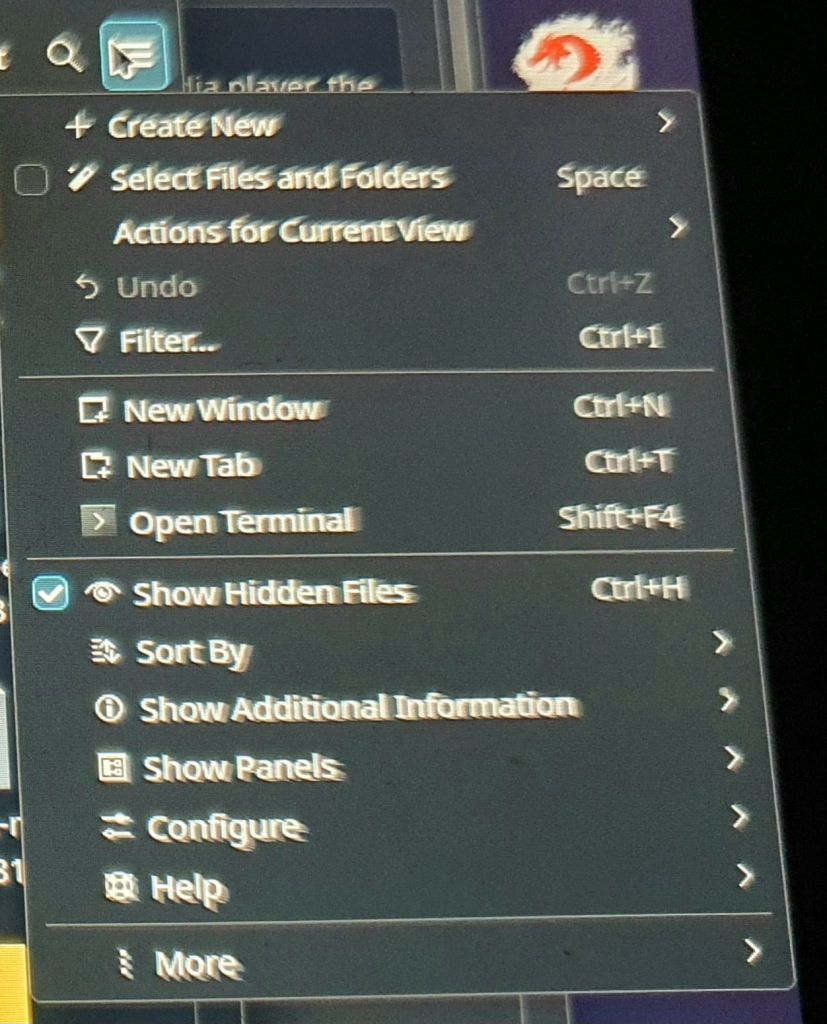
- Enable “Show Hidden Files”
- Navigate to
.local/share/Euro Truck Simulator 2/ - Create a folder named mod if needed
- Move all .scs files into the mod folder
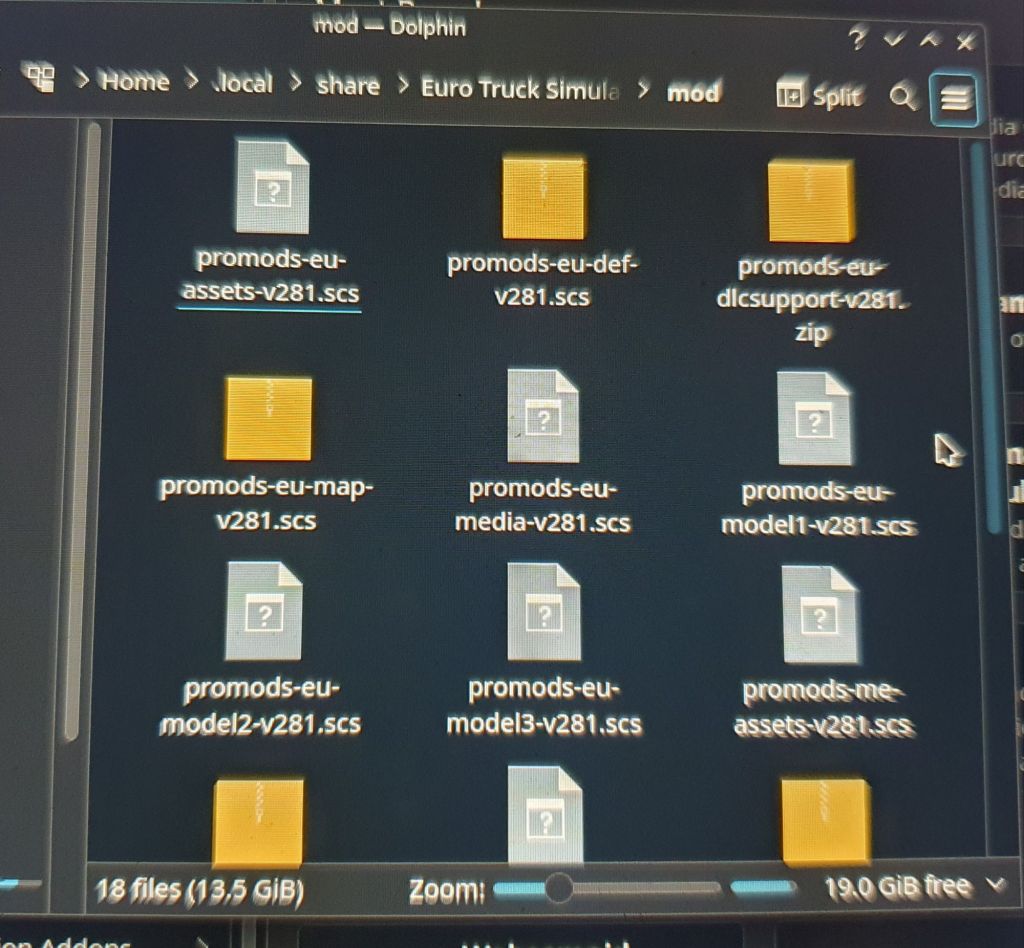
Do not extract the .scs files. Do not place them in subfolders.
Enable ProMods In-Game
If you are in the middle of a delivery when enabling ProMods, the job will be cancelled. Make sure you finish or abandon any active jobs before activating the mod.
- Launch the game
- Open Mod Manager
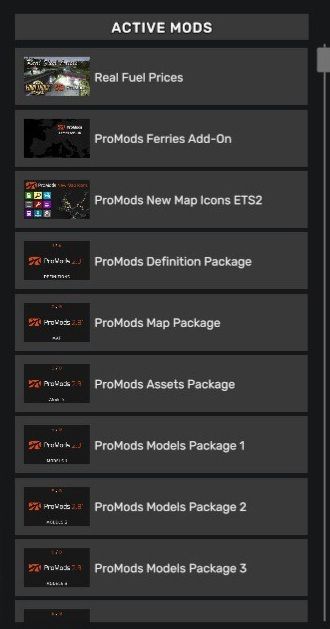
- Activate all ProMods files
- Apply the correct load order
Load Order (Keep This Simple)
Follow the official ProMods load order. You don’t need to memorise it — just follow their structure.
- Definition files at the top
- Map files next
- Assets and models below
Some options require a choice:
- Select one background map (not both)
- Select one trailer/company pack option
If your load order is wrong, the game may crash or the map may not load correctly.
Optional: Expanding ProMods
Once ProMods is working, you can expand the map further using official add-ons such as the Middle East expansion.
Additional add-ons can be found here:
Browse ProMods Add-Ons
Advanced: Full Map Load Order
If you plan to combine ProMods with additional map expansions, you will need a more detailed load order.
This is not required for a standard ProMods setup.
For the full and most up-to-date setup, refer to the official ProMods forum thread:
Optional: Transferring Files to Steam Deck
If you downloaded the ProMods files on another device (such as a phone or PC), you can transfer them to your Steam Deck using cloud storage or file transfer tools.
- Upload the files to a cloud service
- Access them from Desktop Mode on your Steam Deck
- Move them into the correct folder once downloaded
This step is not required if you download the files directly on the Steam Deck.
Common Mistakes
- Using the Steam
steamapps/commonfolder - Naming the folder mods instead of mod
- Placing archive files instead of .scs files
- Incorrect game version
- Missing required DLC
- Not enabling mods in Mod Manager
- Activating conflicting options
Final Check
Open the world map in-game. If everything is set up correctly, ProMods regions will appear fully connected without missing roads or gaps.
Official ProMods Guide
If you want the full documentation, you can find it here:
Read Official Installation Guide
Conclusion
Once ProMods is working, leave it alone. Most issues come from changing things after a stable setup. Install it, confirm it works, and drive.
Thanks to the ProMods team for the continued work on the map and updates.

 Survivor Incognito