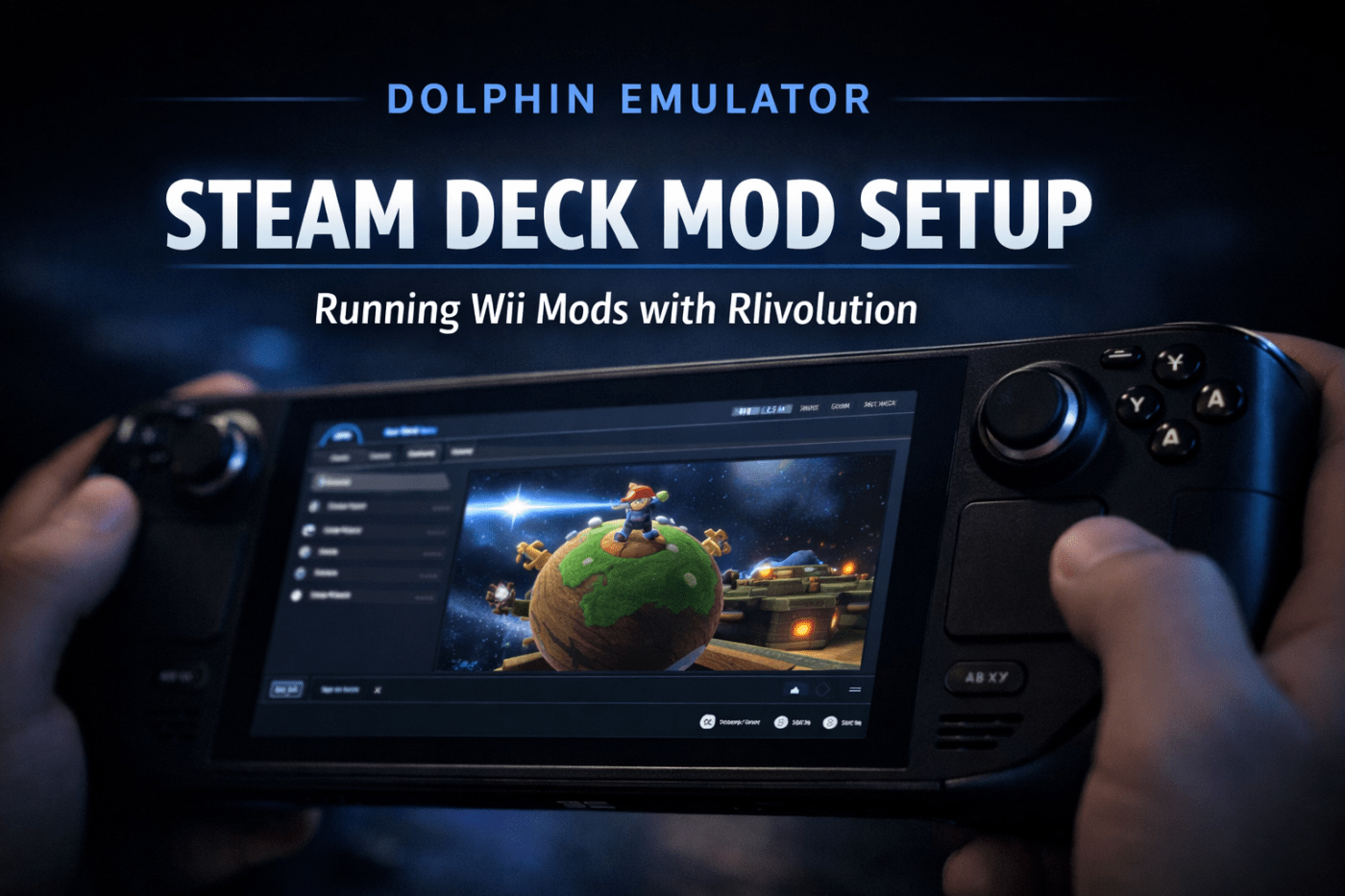
How to Run Mario Galaxy Mods on Steam Deck With Dolphin
This is the exact setup that worked for me. No guesswork, no extra steps, just what actually works.
I already knew the Steam Deck could run Wii games through Dolphin. The part I wanted to figure out was whether it could go further and run Mario Galaxy mods properly.
After some trial and error, I got it working consistently. Not just launching, but actually playable.
This guide shows exactly what worked, without overcomplicating it.
Getting Dolphin Set Up
Switch your Steam Deck to Desktop Mode and install Dolphin from the Discover store.
Launch it once so it creates its folders, then add it to Steam as a non-Steam game so you can use it in Gaming Mode.
Before going further, make sure you can launch a standard Wii game. If that does not work, fix that first.
Where to Put Your Games
Create a simple folder for your games, for example:
/Emulation/roms/wii/
Place your game files there, then add that folder in Dolphin under Config → Paths.
Legal note: I can’t provide or link to ROM downloads. Use legally obtained copies of games you own and comply with your local laws.
Where to Put Mods
This is the method that worked consistently.
Place your mod folder and XML file inside Dolphin’s Riivolution folder:
~/.var/app/org.DolphinEmu.dolphin-emu/data/dolphin-emu/Load/Riivolution/
Keep the mod structure intact. Do not move files out of it.
How to Run the Mod
This is the step most people miss.
- Open Dolphin
- Right-click your game
- Select Start with Riivolution Patches
- Enable the patch
- Launch the game
If the patch does not appear here, Dolphin has not detected it correctly.
Use the Steam Deck touchscreen to interact with this menu if needed.
Saving the Mod as a Preset (So You Don’t Have to Reapply It)
Once the mod is working, you can save it as a preset so you do not need to enable the patch every time you launch the game.
- Right-click your game in Dolphin
- Select Start with Riivolution Patches
- Enable the patch as normal
- Save the configuration as a preset
When saving the preset, choose a location that is easy to find. Keeping it alongside your ROMs is the simplest option:
/Emulation/roms/wii/
Once saved, Dolphin will remember the patch and apply it automatically when you launch the game.
Controls on Steam Deck
Controls are largely down to preference, but I had the most success treating the Steam Deck as a keyboard and mouse rather than a standard controller.
In Dolphin, I mapped the Wii Remote to keyboard and mouse inputs, then matched those inputs in the Steam Deck control layout.
The general setup I used was:
- Left stick for movement
- Right trackpad for pointer control
- L1 for spin (shake input)
- Trigger or shoulder button for ground pound (Z input)
- Face buttons mapped to match Dolphin bindings
If something feels off, it usually means your Dolphin bindings and Steam layout are not matching.
If You Get Stuck on “Press A and B”
If the game asks you to press A and B and nothing happens, this is usually an input issue rather than a problem with the mod.
The workaround is simple: use the Steam Deck touchscreen to press through the prompt.
Once past that screen, the controls should work as expected.
The same applies to the Riivolution menu if it does not respond to controls.
Final Verdict
Yes, Mario Galaxy mods work on Steam Deck using Dolphin and Riivolution.
The key points are:
- Use the correct Riivolution folder
- Right-click the game to enable patches
- Save a preset to avoid repeating steps
- Use touchscreen input when needed
Once set up properly, it becomes a simple launch-and-play experience.
Proof It Works (First Star in Neo Mario Galaxy)
Here’s a short clip of the first star running on Steam Deck. This shows the mod loading correctly and the controls working in-game.
If you can move, spin, and complete the objective like this, your setup is working.
Hide the Mouse Cursor Completely
If the mouse cursor keeps appearing during gameplay, you can force Dolphin to hide it completely.
- Open Dolphin
- Go to Config → Interface
- Scroll to the bottom
- Enable Always Hide Mouse Cursor
This removes the cursor entirely during gameplay and avoids issues caused by small input movements.
Important: This only works in fullscreen mode. If you are running Dolphin in windowed mode, the cursor may still appear.
It’s easiest to set this up in Desktop Mode first so you can test it properly. Once set, Dolphin will usually remember this when launching from Gaming Mode.

 Survivor Incognito